In-App Browser
Preview web apps and pages inside a task
The in-app browser opens web pages as tabs inside a task. Use it to preview a local dev server, open a public HTTP or HTTPS page, sign in to app-specific accounts, or keep the rendered app in the same task workspace as the agent, diff view, file editor, and terminal.
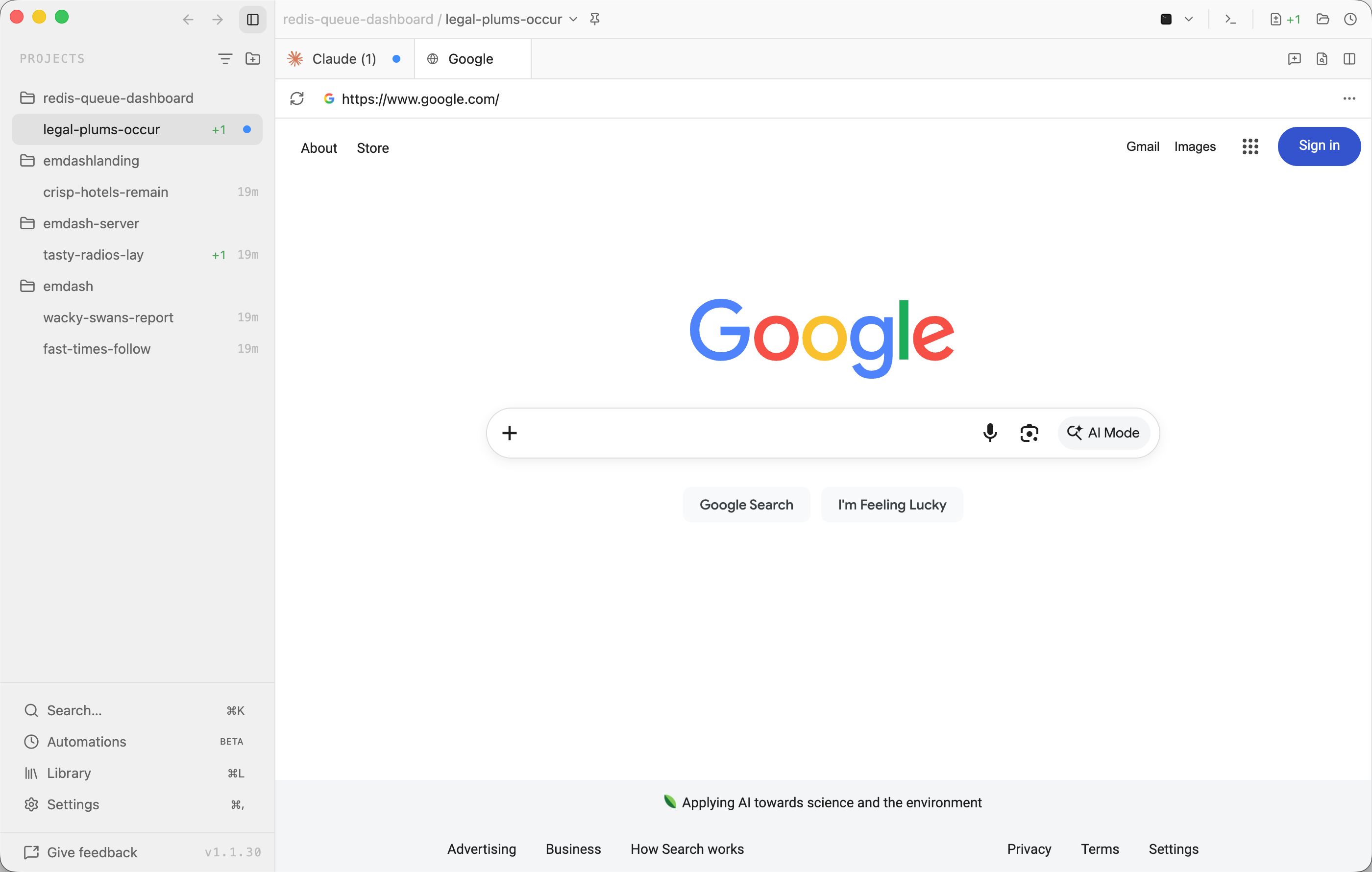
Opening the Browser
Open a task, then run Open Browser from the command palette or press ⌘⇧B on macOS and Ctrl+Shift+B on Windows/Linux.
If Emdash detects a running dev server for the task, the dev-server pill in the task title bar opens a menu. Choose Open in Emdash Browser to open that URL in a browser tab, or Open in System Browser to leave Emdash.
Navigation
Enter a URL in the browser toolbar and press Enter. Localhost-style URLs such as localhost:3000 open with http://; public domains such as example.com open with https://.
The toolbar shows the site favicon when available, URL, loading state, and reload or stop control. The browser actions menu includes:
- Open externally: Open the current HTTP or HTTPS page in your system browser.
- Open DevTools: Open Electron DevTools for the page in development builds.
- Clear cookies: Clear cookies for the active browser profile.
- Clear cache: Clear cached resources for the active browser profile.
- Clear browser storage: Clear cookies, local storage, IndexedDB, and cache for the active browser profile after confirmation.
Sessions
Browser tabs use persistent Emdash browser profiles. A profile keeps its own cookies, local storage, IndexedDB, and cache, so sign-in state can survive app restarts and be reused across browser tabs that use the same profile.
Profiles are separate from your system browser and from each other. Use multiple profiles when you want separate accounts, clean test states, or different customer and staging sessions without signing in and out repeatedly.
Open Settings → Browser to add, rename, delete, clear, or switch browser profiles. Use Clear browser storage from the browser actions menu when you want to clear cookies, local storage, IndexedDB, and cache for the active profile after confirmation.
Browser tabs are saved with the task view, so reopening Emdash restores the tab and its last URL. The restored tab uses its selected browser profile, including any persisted sign-in state for that profile.
Troubleshooting
If a page fails to load, the browser shows an error screen with the failure state and suggestions. Use Reload to retry, or edit the URL in the toolbar and press Enter.
For a clean browser state, use the browser actions menu to clear individual categories like cookies or cache, or clear all browser storage for the active profile. Use Settings → Browser when you need to clear or manage a profile's stored browsing data.
Limits
The in-app browser supports http:, https:, and about:blank navigation. It blocks unsupported schemes such as javascript:, data:, and file:.
Emdash does not reuse your Chrome profile, load browser extensions, or share existing system-browser sign-in state. Sign in inside the Emdash browser when you want that authentication state saved to an Emdash browser profile. Use the system browser for pages that require your normal browser profile or browser extensions.