Keyboard Shortcuts
Default keyboard shortcuts in Emdash
Emdash shortcuts use ⌘ on macOS and Ctrl on Windows and Linux. Most shortcuts can be changed from Settings → Keyboard shortcuts.
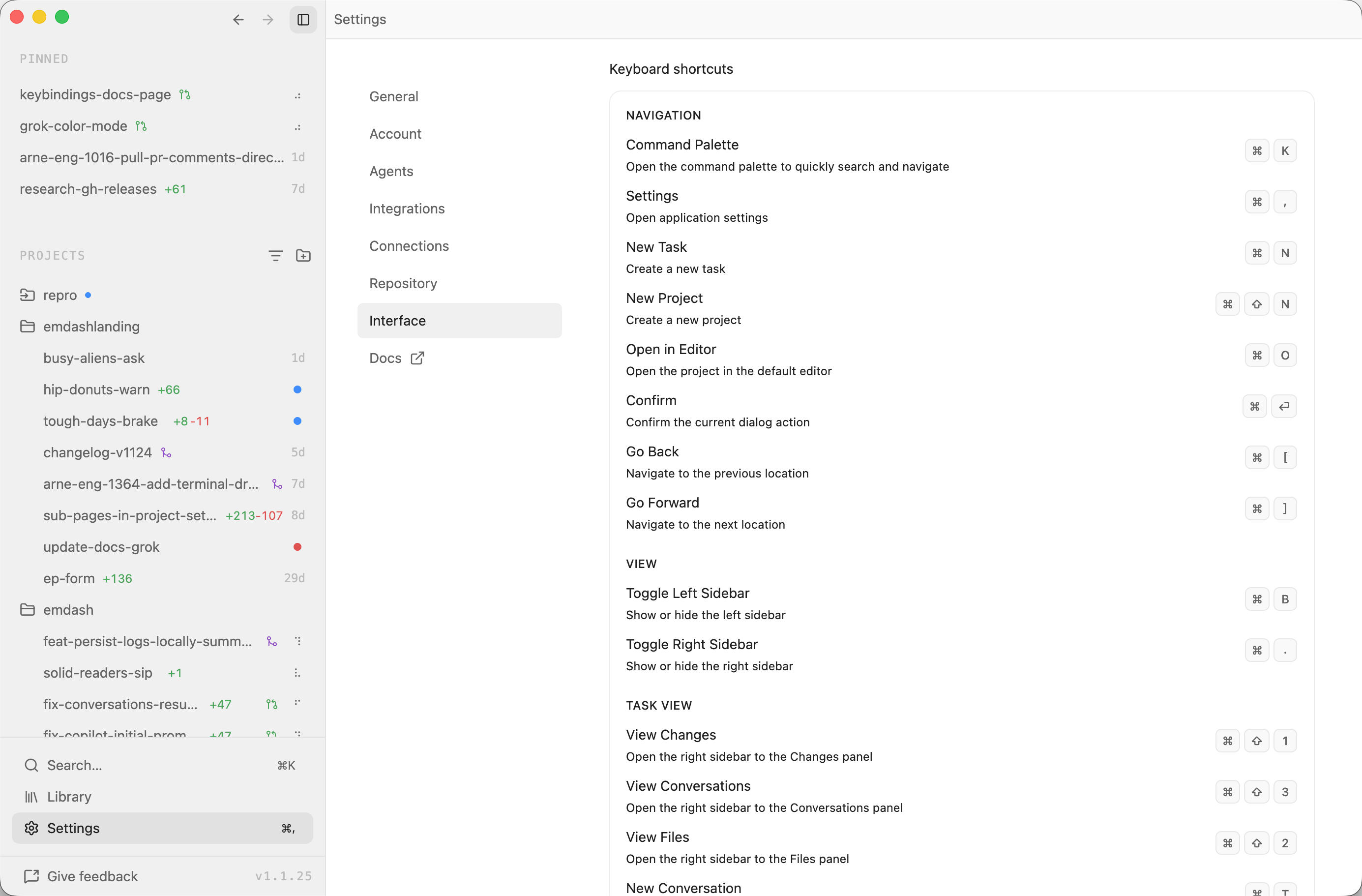
Navigation
| Action | macOS | Windows / Linux |
|---|---|---|
| Open command palette | ⌘K | Ctrl+K |
| Open settings | ⌘, | Ctrl+, |
| Open the Library | ⌘L | Ctrl+L |
| Close the current modal or dialog | Esc | Esc |
| Create a task | ⌘N | Ctrl+N |
| Delete selected tasks | ⌘Backspace | Ctrl+Backspace |
| Create a project | ⌘⇧N | Ctrl+Shift+N |
| Open project in editor | ⌘O | Ctrl+O |
| Confirm dialog action | ⌘Enter | Ctrl+Enter |
| Go back | ⌘[ | Ctrl+[ |
| Go forward | ⌘] | Ctrl+] |
View
| Action | macOS | Windows / Linux |
|---|---|---|
| Toggle left sidebar | ⌘B | Ctrl+B |
| Toggle right sidebar | ⌘. | Ctrl+. |
Task View
| Action | macOS | Windows / Linux |
|---|---|---|
| View Changes panel | ⌘⇧1 | Ctrl+Shift+1 |
| View Files panel | ⌘⇧2 | Ctrl+Shift+2 |
| View Conversations panel | ⌘⇧3 | Ctrl+Shift+3 |
| Create a conversation | ⌘T | Ctrl+T |
| Create a conversation in a right split | ⌘D | Ctrl+D |
| Create a terminal | ⌘⇧T | Ctrl+Shift+T |
| Open browser | ⌘⇧B | Ctrl+Shift+B |
| Toggle terminal drawer | ⌘J | Ctrl+J |
| Switch to next task | ⌘⌥↓ | Ctrl+Alt+↓ |
| Switch to previous task | ⌘⌥↑ | Ctrl+Alt+↑ |
Tab Navigation
| Action | macOS | Windows / Linux |
|---|---|---|
| Switch to next tab | ⌘⌥→ or Ctrl+Tab | Ctrl+Alt+→ or Ctrl+Tab |
| Switch to previous tab | ⌘⌥← or Ctrl+Shift+Tab | Ctrl+Alt+← or Ctrl+Shift+Tab |
| Close active tab | ⌘W | Ctrl+W |
| Split pane | ⌘\ | Ctrl+\ |
| Jump to tab 1-9 | ⌘1 through ⌘9 | Ctrl+1 through Ctrl+9 |
Context and Search
| Action | macOS | Windows / Linux |
|---|---|---|
| Search within focused search inputs | ⌘F | Ctrl+F |
| Toggle Add context menu in a conversation | ⌘⇧A | Ctrl+Shift+A |
| Add selected context and send | ⌘Enter | Ctrl+Enter |
Notes
Shortcuts shown in the app reflect your current settings. If you clear a shortcut in Settings, its UI hint disappears and the action no longer listens for that key binding.
Some shortcuts are scoped to the current view. For example, tab shortcuts only apply to tabs inside the current task, and task view shortcuts only apply while a task is open.
Next and previous task shortcuts follow the visible project-tree order in the left sidebar, moving across expanded projects and skipping collapsed or hidden tasks. They do not run while the file editor is focused, so editor multi-cursor shortcuts keep working.
Ctrl+Tab and Ctrl+Shift+Tab cycle through task tabs with wrap-around behavior, and continue to work while focus is inside a terminal, file editor, or in-app browser tab.